PC Benchmarking Guide: How to Test a New Gaming PC Without Fooling Yourself
A clean benchmarking routine for gaming PCs: 3DMark, Cinebench, OCCT, HWiNFO, CapFrameX, FrameView and real-game testing.
 Photo by Atahan Demir on Pexels
Use 3DMark for a GPU baseline, Cinebench for CPU and cooling, OCCT for stability, HWiNFO for sensors, CapFrameX or FrameView for real-game frame times, and CrystalDiskMark for SSD sanity checks. Compare only the same benchmark, same settings and similar CPU/GPU combinations.
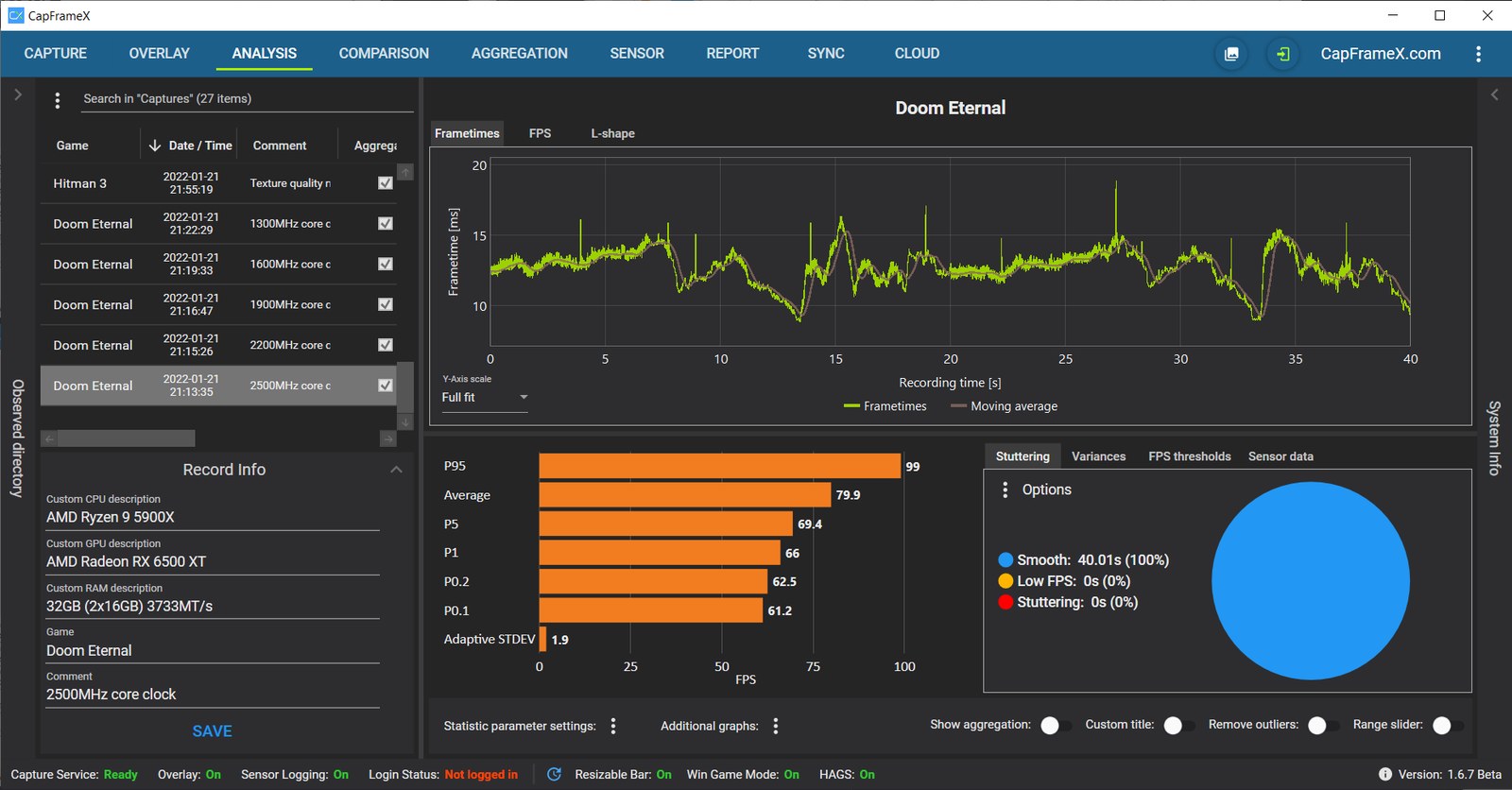
The workflow is checked against the official documentation for CapFrameX, NVIDIA FrameView and the other linked tools. The screenshot below is an official CapFrameX interface example, not a benchmark result produced by this site or a claim about the reader's hardware.
What a useful frame-time capture contains
A trustworthy capture keeps the test route, hardware description, frame-time graph and percentile results together. This official CapFrameX example demonstrates the interface only; its Doom Eternal numbers are not used as a product benchmark on this site.
 Official CapFrameX project screenshot
Shows whether GPU score, clocks, temperature and power look normal.
Good for CPU cooler mounting, fan curves and thermal limits.
Useful after a fresh build, undervolt, RAM tune or random crash.
Frame times and 1% lows tell more than a simple average FPS.
What people search for
New PC owners and GPU buyers want to know if their expensive build is performing normally, stable under load and actually smoother in games.
The benchmark stack
A good benchmark routine does not try to prove that the PC is magical. It tries to prove that the PC is normal, stable and smooth. That is more useful when you have just spent a lot of money on a GPU, monitor and power supply.
Use synthetic tests for repeatable baselines, then use real games for the feel. Synthetic scores are great for finding a broken driver, wrong PCIe mode or thermal throttle. Real games reveal shader stutter, CPU limits, bad settings and frame pacing.
| Tool | ||
|---|---|---|
| 3DMark | GPU baseline and online score comparison | Score, graphics score, settings, driver version |
| Cinebench | CPU load and cooling check | Multi-core score, CPU temperature, clock behavior |
| OCCT | Stability, power and error checks | Test type, duration, errors, max temperatures |
| HWiNFO | Sensor logging during every test | GPU hotspot, CPU package, clocks, power limits |
| CapFrameX | Real-game frame-time analysis | Average FPS, 1% lows, frame-time graph |
| NVIDIA FrameView | GeForce FPS, power and efficiency logging | FPS, power, performance per watt |
| CrystalDiskMark | SSD sanity check | Sequential and random results, drive slot notes |
A clean 45-minute routine
Start with stock settings. No undervolt, no RAM hero mode, no fan curve experiments. You want a baseline you can return to later. Update GPU drivers, reboot, set the monitor refresh rate correctly, then close launchers and overlays you do not need.
Run one GPU benchmark, one CPU benchmark, one storage check and one real game capture. Write down results in the same note every time. The boring notebook is what makes the numbers useful later.
- Run 3DMark once and compare against similar systems, not against random world records.
How to read the result
A low score does not automatically mean bad hardware. It can be an old driver, background capture, wrong power plan, single-channel RAM, BIOS defaults, thermal throttling, a monitor stuck at the wrong mode or a game shader cache rebuilding in the background.
Look for patterns. If synthetic GPU score is normal but games stutter, investigate game settings, CPU limits and storage. If every test is low, check power, cooling, drivers and whether the GPU is in the right PCIe slot.
- Compare graphics score separately from total score when checking GPU performance.
What makes it authentic
The best benchmark page is honest about uncertainty. It says what was tested, what settings were used, which driver was installed, and what room or case airflow might change. That kind of context beats a giant number without notes.
For this site, the angle should stay practical: can a player tell whether a new PC, GPU, monitor or cable is working as expected before the return window gets awkward?
Performance guide scope
This guide is written for players everywhere. Norway-specific retailer, warranty and price comparison advice belongs in the hardware buying guides, not in FPS, settings or benchmarking pages.
FAQ
Which benchmark should I run first on a new gaming PC?
Run 3DMark with HWiNFO logging in the background. It gives you a repeatable GPU baseline and sensor data in one pass.
Is 3DMark enough to prove my PC is stable?
No. 3DMark is useful for a performance baseline. Stability needs longer gaming sessions, sensor logging and tools such as OCCT when crashes or undervolts are involved.
Should I trust average FPS?
Average FPS is only part of the story. 1% lows and frame-time graphs are better for judging whether a game actually feels smooth.
Sources and methodology
Performance guides combine official documentation, benchmark tools, public hardware trend data and repeatable testing habits. Always measure your own system before changing several settings at once.