Best Fortnite FPS Settings for PC: Low Latency, Visibility and GPU Tiers
A practical Fortnite PC settings guide for high FPS, lower input latency, cleaner visibility and common GPU tiers from budget laptops to premium rigs.
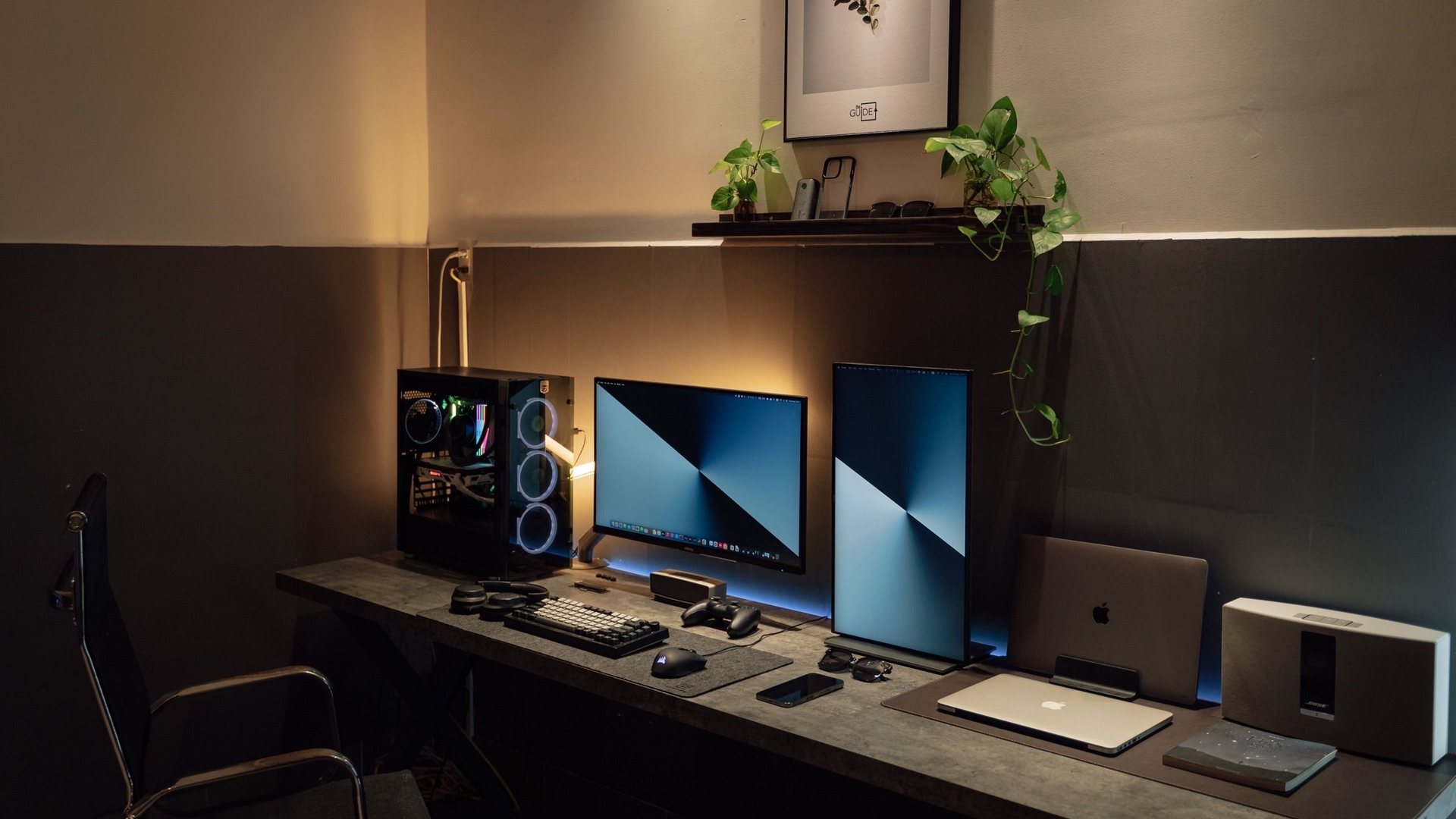 Photo by Minh Phuc on Pexels
For competitive Fortnite, start with fullscreen or optimized borderless, native refresh rate, V-Sync off, motion blur off, shadows low/off, effects low, post-processing low and textures based on VRAM. Use Performance Mode on weak PCs, DX12 on stronger modern GPUs if it is stable, and cap FPS slightly below what your system can hold.
Use this for older laptops, integrated graphics and PCs that cannot hold stable frame pacing.
Try DX12 on RTX 4060/5060/5070, Radeon RX and Arc cards, then keep it only if stutter is controlled.
The target is stable 1% lows and consistent mouse feel, not screenshots.
What people search for
Fortnite players search this when the game feels delayed, stuttery or visually messy and they want settings they can apply fast.
The settings that matter first
Fortnite rewards stable frames and fast input more than decorative graphics. Before touching every option, set the monitor to its real refresh rate in Windows and in game, then build a stable baseline.
If your average FPS looks high but the game feels uneven, the problem is often 1% lows, shader stutter, background apps, unstable GPU clocks or an FPS cap that your PC cannot hold.
| Setting | ||
|---|---|---|
| Display | Fullscreen or optimized borderless | Reduces weird focus and scaling issues. |
| V-Sync | Off | Avoids extra input latency in competitive play. |
| Motion blur | Off | Improves clarity while turning. |
| Shadows | Low or off | Big FPS cost and visual clutter. |
| Textures | Match VRAM | Too high can cause stutter; too low can look unnecessarily rough. |
| FPS cap | Slightly below stable peak | Consistent frame pacing beats a bouncing number. |
GPU tier presets
Treat these as starting points, not magic. After changing settings, play the same drop route twice and watch stutter, not only the top-right FPS number.
For NVIDIA cards, test Reflex where available. For Radeon and Intel Arc, keep drivers current and compare the game mode that gives the most consistent frame pacing.
| Hardware | ||
|---|---|---|
| Older laptop or iGPU | Performance Mode | 60-120 FPS with low stutter. |
| GTX 1650 / RTX 3050 | Performance Mode or low DX11/DX12 | 1080p high refresh if CPU allows. |
| RTX 3060 / RTX 4060 | DX12 low competitive settings | 144-240 FPS depending on CPU. |
| RTX 5070 / RX 9070 / RTX 5080 | DX12, clean low settings | 240Hz+ with strong 1% lows. |
Troubleshooting stutter
If Fortnite stutters after a driver update, shader rebuild or big patch, do not immediately buy hardware. Restart, let shaders settle, close overlays, check Windows Game Mode, update GPU drivers and test one change at a time.
Record your settings once you find a stable version. Competitive games change often, and screenshots of your working setup make it much easier to recover after updates.
- Use a wired mouse or a proven low-latency wireless mouse.
Gaming guide scope
This guide is written for players everywhere. Norway-specific retailer, warranty and price comparison advice belongs in the hardware buying guides, not in game tutorials.
FAQ
Is Performance Mode best for Fortnite?
It is best for many weak or competitive-focused PCs, but stronger modern GPUs should also test DX12 because it can feel smoother after shaders settle.
Should I cap Fortnite FPS?
Yes, if your FPS swings wildly. A stable cap slightly below what your system can hold often feels better than a high number that constantly drops.
Does a 240Hz monitor help Fortnite?
Yes, if your PC can keep frame pacing stable near that refresh rate. If not, upgrade settings and CPU/GPU balance before blaming the monitor.
Sources and methodology
Game guides combine official game sources, creator documentation, public hardware trend data and practical settings methodology. Hardware buying details are kept separate unless the game itself creates a clear PC requirement.